User Guide
DoctorWho is designed for clinic receptionists and administrative staff at single-doctor General Practitioner (GP) clinics. This guide assumes you are comfortable using a computer for everyday tasks, but no programming or technical experience is required.
Do you prefer typing information to having to click on multiple things? DoctorWho is for you!
DoctorWho is a desktop app for managing patient information and appointments, optimized for use via a Command Line Interface (CLI) while still having the benefits of a Graphical User Interface (GUI). If you can type fast, DoctorWho can get your patient management tasks done faster than traditional GUI apps.
Can DoctorWho help you?
Yes, if your clinic is still:
- Using paper filing to keep track of your patients and their appointments.
- Dealing with long search times in Excel.
- Paying exorbitant fees for enterprise grade software to only track a handful of patients.
Table of Contents
- Quick start
- Command Summary
- Features
-
DoctorWho Operations
- Adding a patient:
add - Listing all patients:
list - Editing a patient:
edit - Locating patients by name:
find - Deleting a patient:
delete - Adding an appointment:
apt - Deleting an appointment:
dapt - Listing all appointments:
lsapt - Clearing all entries:
clear - Viewing help:
help - Exiting the program:
exit - Command parameters
- Adding a patient:
- Storage
- FAQ
- Glossary
- Known issues
- Final word
Quick start
Don’t worry if you’re not tech-savvy — just follow these steps one by one, and you’ll be up and running in no time!
-
First, make sure you have Java
17installed on your computer. Not sure if you have it? Open a terminal and typejava -version— if you see the version number 17, you’re good to go!
macOS users: Check out this guide to get the exact JDK version you need. -
Next, download the latest
doctorwho.jarfile from here. You’ll find it under the Assets section of the latest release — just click ondoctorwho.jarto download it. -
Move the
doctorwho.jarfile to the folder where you’d like to store your patient data. We recommend creating a brand-new empty folder for this (e.g., a folder namedDoctorWhoon your Desktop), so everything stays neat and tidy.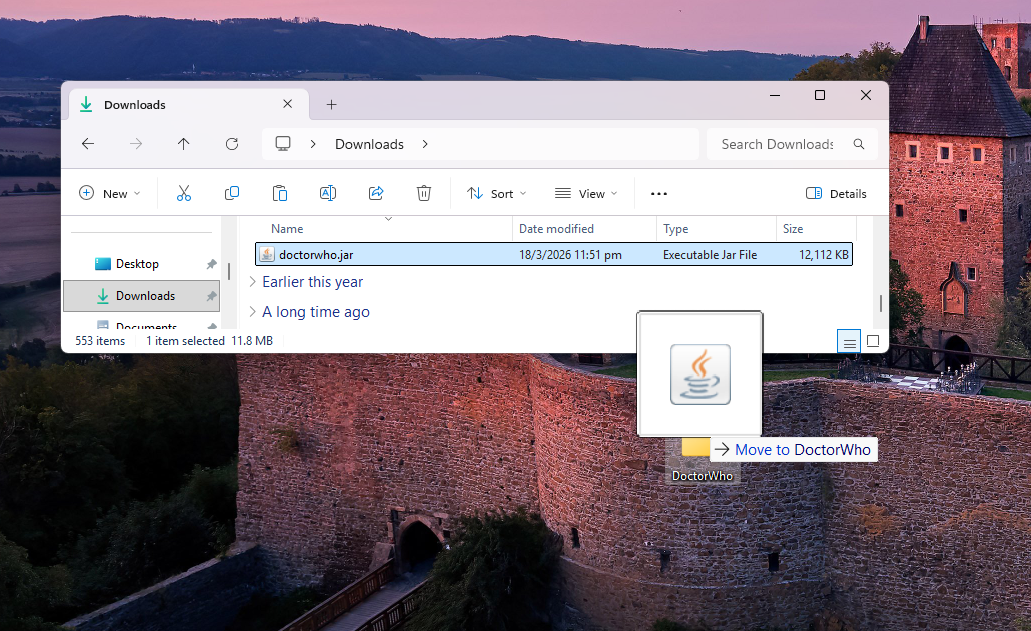
-
Now, let’s launch the app! Open a command terminal in your
DoctorWhofolder:-
Windows: Press
Win + R, typecmd, and hit Enter. - macOS/Linux: Search for Terminal in Spotlight or your app menu.
Then, navigate to your folder. For example, if you placed it on your Desktop in a folder called
DoctorWho, type:cd Desktop/DoctorWhoFinally, run the app with:
java -jar doctorwho.jar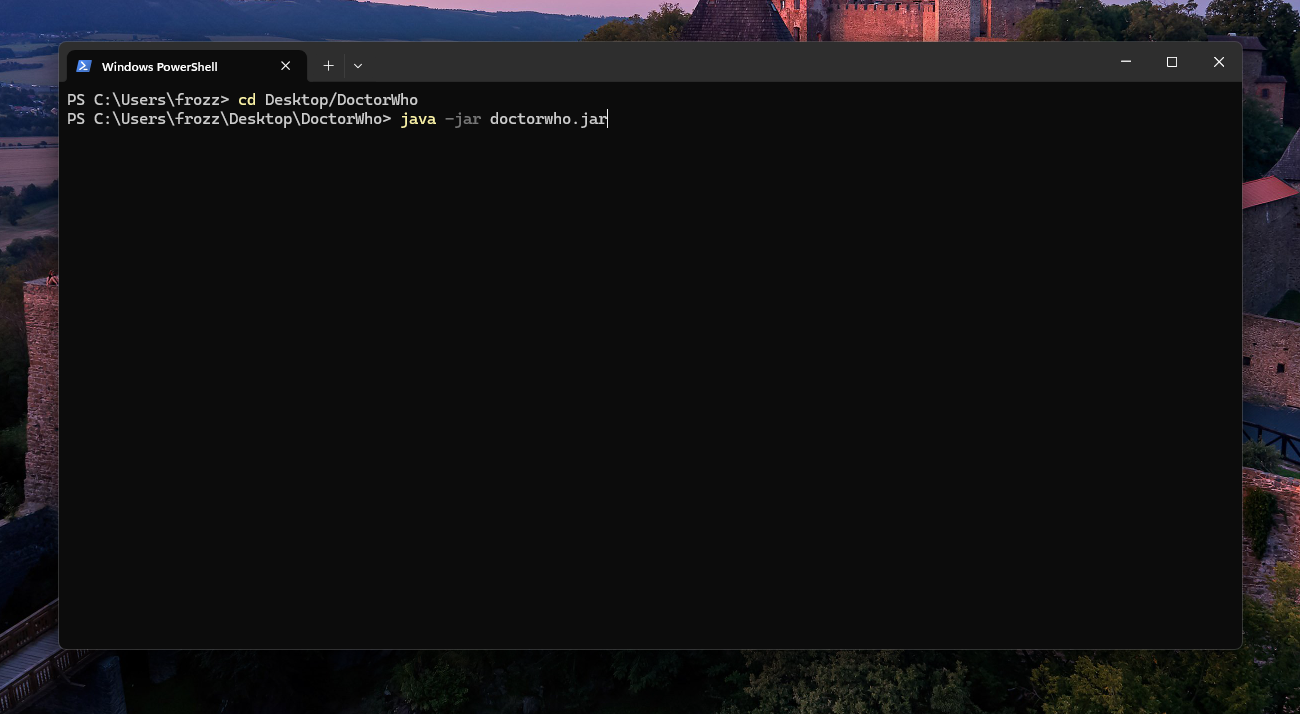
-
Windows: Press
-
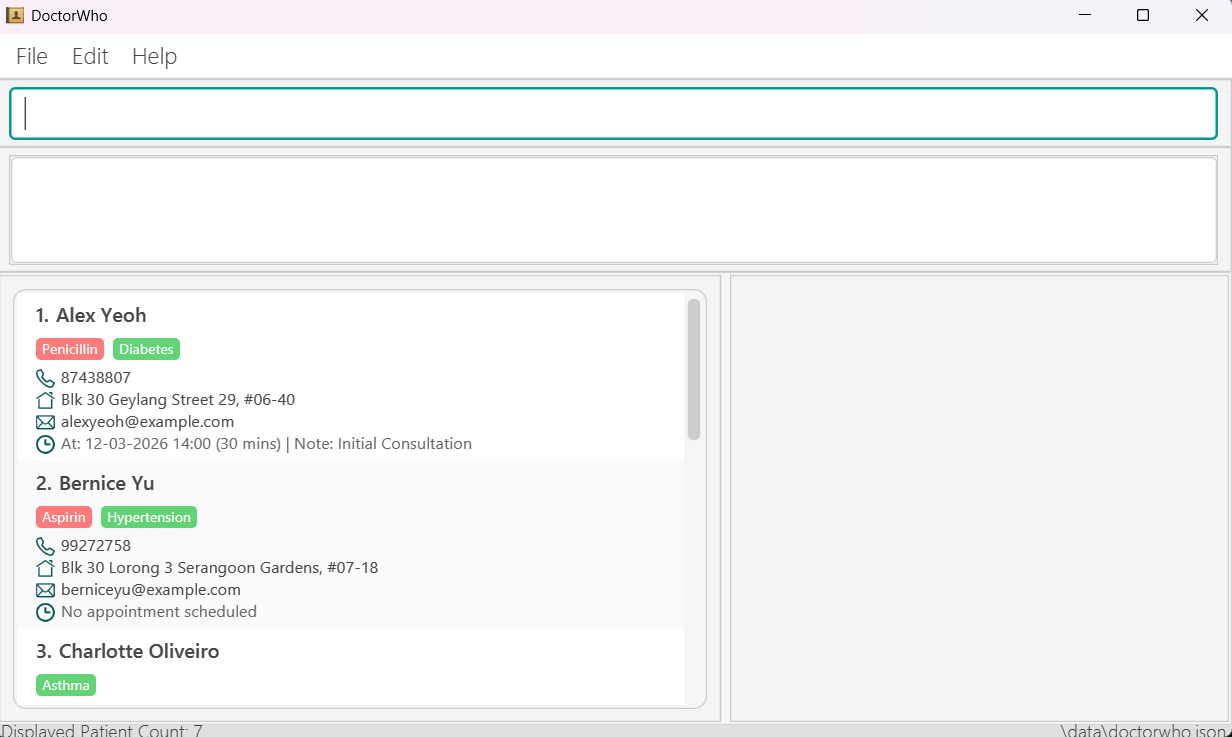
DoctorWho will launch with some sample data so you can explore right away — it should look something like this:
-
Type a command in the command box at the top and press Enter to run it. Here are a few to try out:
-
list— Lists all patients. -
add n/John Doe ic/T0300001F x/M dob/01-04-2003 p/98765432 e/johnd@example.com a/John street, block 123, #01-01— Adds a patient namedJohn Doe. -
delete 3— Deletes the 3rd patient in the current list. -
apt 3 d/01-04-2026 09:00 dur/60 note/Follow-up for diabetes review— Schedules an appointment for the 3rd patient. -
lsapt d/12-03-2026— Lists appointments for 12th March 2026. -
dapt 1— Removes the appointment from the 1st patient.
-
-
When you’re ready to explore more, check out the Features section for the full command details, or jump to the Command Summary for a quick cheatsheet!
Command Summary
Here is a quick reference list for the commands DoctorWho provides, more detailed information about all of the commands can be found in Features.
| Action | Format, Examples |
|---|---|
| Add |
add n/NAME ic/NRIC x/SEX dob/DOB p/PHONE_NUMBER e/EMAIL a/ADDRESS [al/ALLERGY]… [mc/CONDITION]…e.g., add n/James Ho ic/T0300002D x/M dob/01-04-2003 p/22224444 e/jamesho@example.com a/123, Clementi Rd, 1234665 al/dust mc/allergic rhinitis
|
| List | list |
| Edit |
edit PATIENT_NUMBER [n/NAME] [ic/NRIC] [x/SEX] [dob/DOB] [p/PHONE_NUMBER] [e/EMAIL] [a/ADDRESS] [al/ALLERGY]… [mc/CONDITION]…e.g., edit 2 n/James Lee e/jameslee@example.com
|
| Find |
find KEYWORD [MORE_KEYWORDS]…e.g., find James Jake
|
| Delete |
delete PATIENT_NUMBERe.g., delete 3
|
| Add appointment |
apt PATIENT_NUMBER d/DATETIME dur/DURATION [note/NOTE]e.g., apt 2 d/01-04-2026 09:00 dur/60 note/Follow-up for diabetes review
|
| Delete appointment |
dapt PATIENT_NUMBERe.g., dapt 1
|
| List appointments |
lsapt [d/DATE]e.g., lsapt, lsapt d/14-03-2026
|
| Clear | clear |
| Help | help |
| Exit | exit |
Features
 Notes about the command format:
-
Words in
UPPER_CASEare the parameters to be supplied by the user.
e.g., inadd n/NAME,NAMEis a parameter which can be used asadd n/John Doe. -
Items in square brackets are optional.
e.g.,n/NAME [al/ALLERGY]can be used asn/John Doe al/Aspirinor asn/John Doe. e.g.,n/NAME [mc/CONDITION]can be used asn/Johnny mc/High BPor asn/Johnny -
Items with
… after them can be used multiple times including zero times.
e.g.,[al/ALLERGY]…can be used as (i.e., 0 times),al/Penicillin,al/Ibuprofen al/Aspirinetc. -
Parameters can be in any order.
e.g., if the command specifiesn/NAME p/PHONE_NUMBER,p/PHONE_NUMBER n/NAMEis also acceptable. -
Prefixes can be surrounded by any number of spaces, these excess spaces will be trimmed from the input.
e.g.,add n/NAME ic/NRICandadd n/ NAME ic/NRIC, will be interpreted asadd n/NAME ic/NRIC. -
Extraneous parameters for commands that do not take in parameters (such as
help,list,exit, andclear) will be ignored.
e.g., if the command specifieshelp 123, it will be interpreted ashelp. -
Date format is
dd-MM-yyyyforaddandeditcommands,dd-MM-yyyy HH:mmfor appointment commands. -
If you are using a PDF version of this document, be careful when copying and pasting commands that span multiple lines as space characters surrounding line-breaks may be omitted when copied over to the application.
-
Note that the zero-width space(ZWSP) character is used in some examples showing consecutive spaces in an effort to fix HTML collapsing the whitespace. Therefore, you may face some issues directly copying and pasting those examples as the ZWSP is considered an invalid character for most parameters, we recommend typing out those examples.
DoctorWho Operations
Adding a patient: add
Adds a patient to DoctorWho.
Format: add n/NAME ic/NRIC x/SEX dob/DOB p/PHONE_NUMBER e/EMAIL a/ADDRESS [al/ALLERGY]… [mc/CONDITION]…
- Will fail if there is an existing patient with the same NRIC, however other fields allow duplicates i.e., two patients may have the same name.
- The date of birth(dob) must be in the format
dd-MM-yyyyand must be either the current date or earlier e.g.,12-03-2026refers to 12th March 2026. - All parameters are compulsory, except for those in square brackets.
- Refer to
addcommand parameters
 Tip:
A patient can have any number of allergies or medical conditions (including 0)
Tip:
A patient can have any number of allergies or medical conditions (including 0)
Examples:
add n/John Doe ic/T0300003B x/M dob/01-04-2003 p/98765432 e/johnd@example.com a/John street, block 123, #01-01add n/Betsy Crowe ic/T0300004J x/F dob/02-04-2003 e/bcrowe@example.com a/Newgate Prison p/1234567 al/Penicillin mc/coldadd n/Tim Chal ic/T0300005I x/M dob/03-04-2003 e/betsycrowe@example.com a/Newgate Prison p/1234567 al/Morphine
Listing all patients: list
Shows a list of all patients in DoctorWho.
Format: list
Editing a patient: edit
Edits an existing patient in DoctorWho.
Format: edit PATIENT_NUMBER [n/NAME] [ic/NRIC] [x/SEX] [dob/DOB] [p/PHONE_NUMBER] [e/EMAIL] [a/ADDRESS] [al/ALLERGY]… [mc/CONDITION]…
- Edits the patient at the specified
PATIENT_NUMBER. The index refers to the index number shown in the displayed patient list. The index must be a positive integer 1, 2, 3, … - At least one of the optional fields must be provided.
- Existing values will be updated to the input values.
- When editing conditions and allergies, the existing ones of the patient will be removed i.e., adding is not cumulative.
- You can remove all the patient’s allergies or medical conditions by typing
al/ormc/respectively, without any other entries.
e.g.,al/ al/Ibuprofenandmc/IBS mc/will not work. - Refer to
editcommand parameters
Examples:
-
edit 1 x/F p/91234567 e/johndoe@example.comEdits the sex, phone number, and email address of the 1st patient to beF,91234567, andjohndoe@example.comrespectively. -
edit 2 n/Betsy Crower al/ mc/Edits the name of the 2nd patient to beBetsy Crowerand clears all existing allergies and medical conditions.
Locating patients by name: find
Finds patients whose names contain any of the given keywords.
Format: find KEYWORD [MORE_KEYWORDS]…
- The search is case-insensitive. e.g.,
hanswill matchHans - The order of the keywords does not matter. e.g.,
Hans Bowill matchBo Hans - Only the name is searched.
- Only full words will be matched e.g.,
Hanwill not matchHans - Patients matching at least one keyword will be returned (i.e., OR search).
e.g.,
Hans Bowill returnHans Gruber,Bo Yang
Tip:
Use find before delete or edit to locate the right patient
first. This reduces the risk of accidentally modifying the wrong
patient’s records.
Examples:
-
find JohnreturnsjohnandJohn Doe -
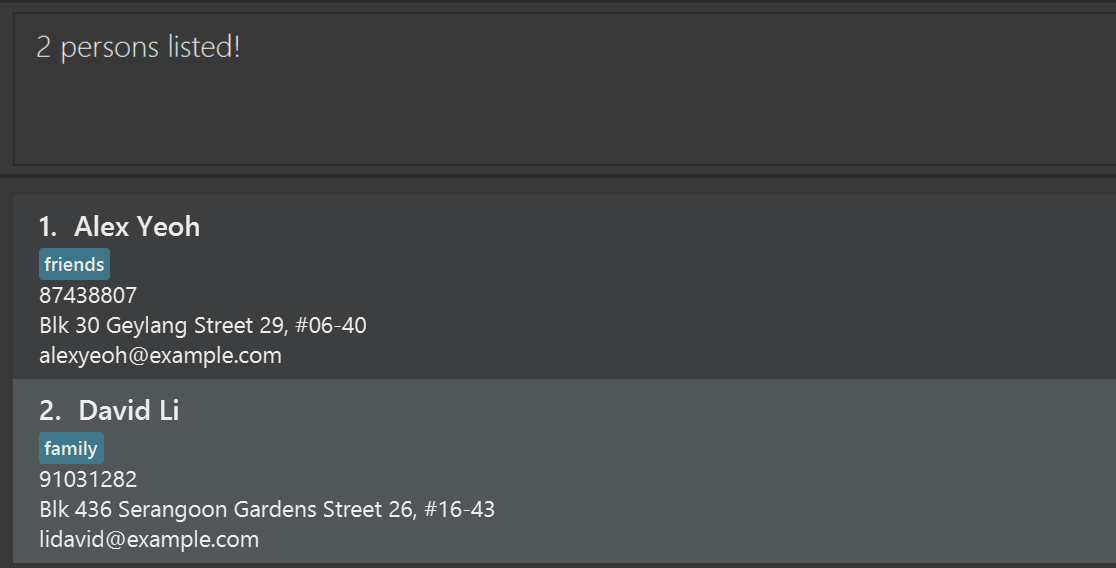
find alex davidreturnsAlex Yeoh,David Li
Deleting a patient: delete
Deletes the specified patient from DoctorWho.
Format: delete PATIENT_NUMBER
- Deletes the patient at the specified
PATIENT_NUMBER. - The PATIENT_NUMBER must be a positive integer 1, 2, 3, …
 Caution:
This action is irreversible. Once a patient is deleted, all their
information and appointments cannot be recovered. Use
Caution:
This action is irreversible. Once a patient is deleted, all their
information and appointments cannot be recovered. Use find first
to confirm you have the right patient before deleting.
Examples:
-
listfollowed bydelete 2deletes the 2nd patient in DoctorWho. -
find Betsyfollowed bydelete 1deletes the 1st patient in the results of thefindcommand.
Adding an appointment: apt
Adds an appointment to the patient identified by the index number used in the displayed patient list. Supply the start date and time, duration, and an optional note.
Format: apt PATIENT_NUMBER d/DATETIME dur/DURATION [note/NOTE]
- Creates and adds an appointment for the patient at the specified
PATIENT_NUMBER. - The
PATIENT_NUMBERmust be a positive integer 1, 2, 3, … - The date and time must be in the format
dd-MM-yyyy HH:mme.g.,12-03-2026 14:00refers to 12th March 2026, 14:00. - The duration must be between 1 and 600 minutes inclusive.
- The note is optional.
- Refer to
aptcommand parameters
Caution:
If the patient already has an existing appointment, it will be
silently overwritten with no confirmation prompt. Check the
patient’s current appointment before using this command.
Examples:
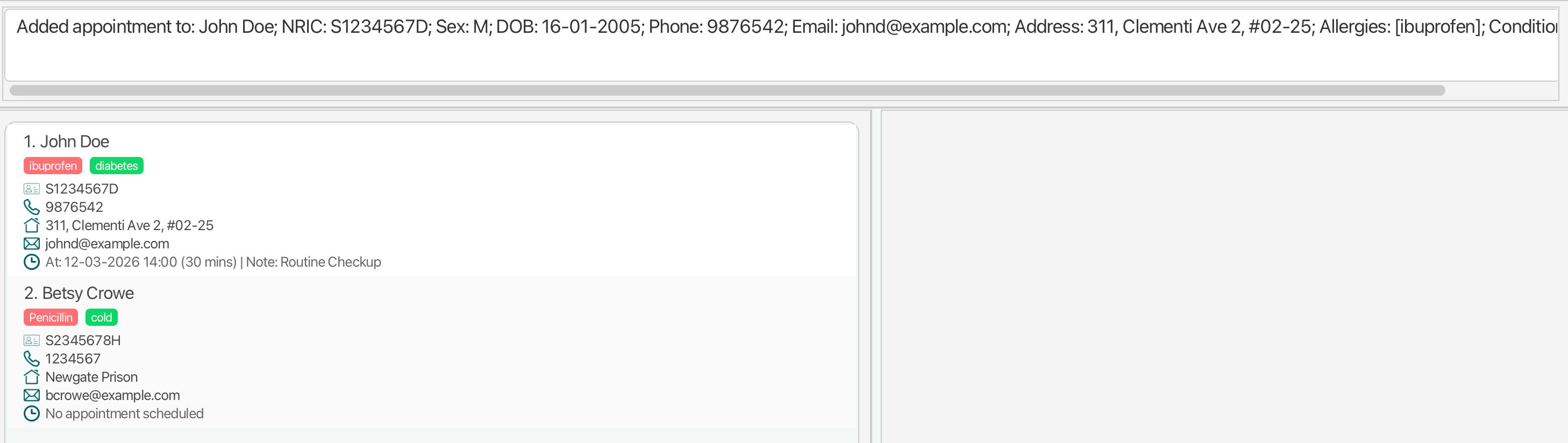
-
apt 1 d/12-03-2026 14:00 dur/30 note/Routine Checkupadds an appointment to the 1st patient, from the top, of the patient list, scheduled for 12th March 2026, at 14:00. A note will be indicated withNote | Routine Checkup
Deleting an appointment: dapt
Deletes the appointment of the patient identified by the index number used in the displayed patient list.
Format: dapt PATIENT_NUMBER
- Deletes the appointment for the patient at the specified
PATIENT_NUMBER. - The
PATIENT_NUMBERrefers to the index number shown in the displayed patient list. - The
PATIENT_NUMBERmust be a positive integer 1, 2, 3, …
Examples:
-
listfollowed bydapt 1deletes the appointment for the 1st patient in the displayed patient list.
Listing all appointments: lsapt
Shows all appointments across all patients, sorted by date-time in ascending order, to give a daily schedule view.
Format: lsapt [d/DATE]
- Lists all scheduled appointments when no date is provided.
- If
d/DATEis provided, only appointments on that date will be shown, and listed from earliest to latest. -
DATEmust be in the formatdd-MM-yyyye.g.,14-03-2026refers to 14th March 2026.
Tip:
Run lsapt d/TODAY'S DATE at the start of your shift to get a
quick overview of all appointments for the day, sorted from
earliest to latest.
Examples:
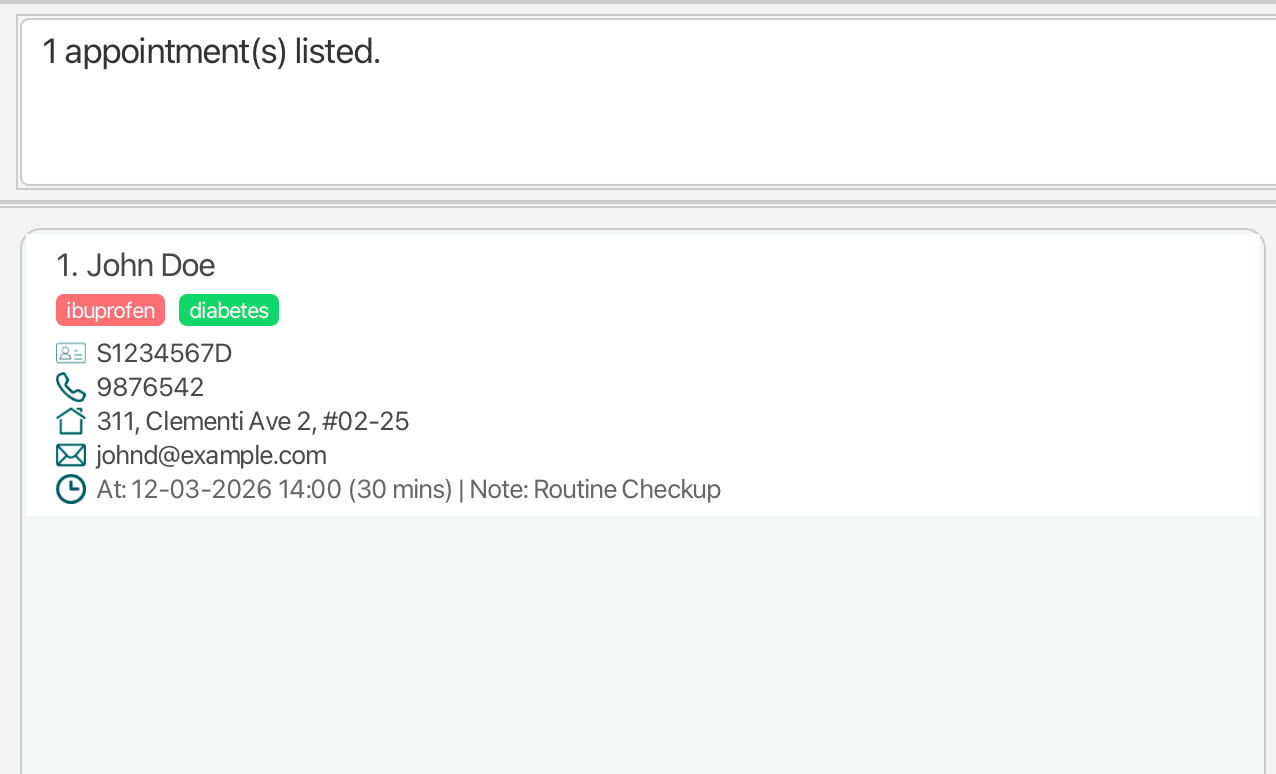
-
lsaptreturns all appointments across all patients, sorted by date-time ascending. -
lsapt d/14-03-2026returns all appointments on 14th March 2026.
Clearing all entries: clear
Clears all entries from DoctorWho.
Format: clear
Caution:
This action is irreversible and will delete all patient data.
Viewing help: help
Opens a window that provides a summary of available commands and explains how to access the help page. (Pressing the F1 key will also open this window)

Format: help
Exiting the program: exit
Exits the program.
Format: exit
Command parameters
Additional details on accepted parameter values:
For the add and edit commands:
Name (n/):
Must be 1 to 100 characters long and start and end with an alphanumeric character.
DoctorWho currently accepts the following special characters in the patient’s name:
| Character | Valid example |
|---|---|
| Hyphens (-) | Mary-Jane |
| Apostrophes (‘) | O’Brien |
| Commas (,) | Henry, Tan |
Examples of invalid name values: n/-David, n/'Aisha, n/,Tan, n/David-, n/O''Brien, n/asdj- -sads.
However, names should not start or end with these special characters or space.
There are other common special characters used in names that are not yet supported. This is a non-exhaustive list of some suggested replacements you can use if you encounter these special characters:
| Character | Invalid example | Suggested replacements (Valid) | Future support |
|---|---|---|---|
| Diacritics | Jäger | Jager | Not planned |
| Slash (/) | Ali s/o Ahmad | Ali so Ahmad Ali SO Ahmad |
Planned |
NRIC (ic/):
DoctorWho prevents invalid NRIC/FIN entries. The ic/ value must contain a valid NRIC/FIN in the required format; otherwise, the command is rejected.
- More information on the NRIC/FIN validation can be found in the Developer Guide.
Sex (x/):
Limited to male or female values only; x/ accepts M or F case-insensitively (for example, x/M, x/F, x/m, and x/f are valid), though edits are allowed.
Phone number (p/):
Must contain only digits and be between 3 to 15 digits long (inclusive).
Examples of valid values: p/123, p/98765432, p/651234567890123.
Examples of invalid values: p/+6598765432, p/12, p/123-4567.
Email (e/):
Must be of the format local-part@domain and adhere to the following constraints:
- The local-part should only contain alphanumeric characters and these special characters, excluding the parentheses, (+_.-). The local-part may not start or end with any special characters.
- This is followed by a ‘@’ and then a domain name. The domain name is made up of domain labels separated by periods.
The domain name must:
- end with a domain label at least 2 characters long
- have each domain label start and end with alphanumeric characters
- have each domain label consist of alphanumeric characters, separated only by hyphens, if any.
Examples of valid values: e/alex.tan+clinic@example.com, e/a_b-c@sub-domain.example.
Examples of invalid values: e/.alex@example.com, e/alex@-example.com, e/alex@example.c.
In the case that the user is unable to provide an email address, DoctorWho accepts a dead-end email address such as, user@example.com.
Address (a/):
Must be 1 to 200 characters long and not blank after trimming leading/trailing spaces.
It may contain only alphanumeric characters, single spaces between words, and these special characters: #, ., ,, (, ), \, -.
Examples of valid values: a/123 Clementi Rd, a/Blk 123, #01-01 (Tower A), a/Jurong\West Ave 2.
Examples of invalid values: a/, a/ , a/Blk 123 (double spaces), a/Bedok@Ave (@ not allowed).
Drug Allergies (al/):
Must be 1 to 30 characters long and contain only alphanumeric characters, single spaces between words, and single hyphens within a word.
Examples of valid values: al/Penicillin, al/Beta-lactam, al/Type 2.
Examples of invalid values: al/Beta--lactam (consecutive hyphens), al/Beta- lactam (space after hyphen), al/Aspirin! (! not allowed).
The parser also conducts a case-sensitive duplicate check so, al/penicillin al/penicillin will create one penicillin allergy condition, but al/penicillin al/Penicillin will create both penicillin and Penicillin.
Medical Conditions (mc/):
Must be 1 to 50 characters long and contain only alphanumeric characters, single spaces between words, and single hyphens within a word.
Examples of valid values: mc/Type 2 diabetes, mc/Post-traumatic stress disorder, mc/High BP.
Examples of invalid values: mc/Post--traumatic stress disorder (consecutive hyphens), mc/Type 2 diabetes (consecutive spaces), mc/Diabetes? (? not allowed).
The parser also conducts a case-sensitive duplicate check so, mc/diabetes mc/diabetes will create one diabetes medical condition, but mc/diabetes mc/Diabetes will create both diabetes and Diabetes.
For the apt command:
Note (note/):
Is limited to 500 characters and can include any character that you can type on your keyboard, except the / character, we recommend replacing it with the \ or | characters.
Storage
Saving the data
DoctorWho data is saved in the hard disk automatically after any command that changes the data. There is no need to save manually.
Editing the data file
DoctorWho data is saved automatically as a JSON file [JAR file location]/data/doctorwho.json. Advanced users are
welcome to update data directly by editing that data file, which follows the following format.
{
  "patients" : [ {
    "name" : "Alex Yeoh",
    "nric" : "S1234567D",
    "sex" : "F",
    "dob" : "01-04-2003",
    "phone" : "87438807",
    "email" : "alexyeoh@example.com",
    "address" : "Blk 30 Geylang Street 29, #06-40",
    "tags" : [ "allergy:Penicillin", "condition:Diabetes" ],
    "appointmentStart" : "12-03-2026 14:00",
    "appointmentDuration" : 30,
    "appointmentNote" : "Initial Consultation"
  }, {
    "name" : "Bernice Yu",
    "nric" : "S2345678H",
    "sex" : "F",
    "dob" : "02-04-2003",
    "phone" : "99272758",
    "email" : "berniceyu@example.com",
    "address" : "Blk 30 Lorong 3 Serangoon Gardens, #07-18",
    "tags" : [ "condition:Hypertension", "allergy:Aspirin" ],
    "appointmentStart" : null,
    "appointmentDuration" : null,
    "appointmentNote" : null
  } ]
}
Furthermore, certain edits can cause DoctorWho to behave in unexpected ways (e.g., if a value entered is outside of the acceptable range). Therefore, edit the data file only if you are confident that you can update it correctly.
FAQ
Q: What happens if I accidentally delete a patient?
A: When a patient is deleted, their details are shown in the GUI, therefore it is possible to re-add the patient before another command is run. Subsequently, deletion is irreversible and the patient’s data cannot be recovered from within the app. To further safeguard against accidental deletion, we recommend periodically making a manual copy of your data file located at [JAR file location]/data/doctorwho.json and storing it in a separate folder. If you have a copy, you can restore it by replacing the current data file with your backup.
Q: Can I schedule multiple appointments for one patient?
A: Currently, DoctorWho supports one active appointment per patient at a time. To schedule a new appointment, use the apt command which will replace the existing one. Support for multiple appointments per patient is planned for a future version.
Q: How do I transfer my data to another computer?
A: Install the app on the other computer and overwrite the empty data file it creates with the file from your previous DoctorWho folder, located at [JAR file location]/data/doctorwho.json.
Glossary
- CLI: Command Line Interface. A text-based interface where users interact with a program by typing commands.
- Command: An instruction given to a computer program to perform a specific task.
- GUI: Graphical User Interface. A visual-based interface where users interact with a program by interacting with windows, icons and menus.
- JSON: JavaScript Object Notation. A lightweight, text-based data interchange format, easily parsable by machines.
Known issues
-
When using multiple screens, if you move the application to a secondary screen, and later switch to using only
the primary screen, the GUI will open off-screen. The remedy is to delete the
preferences.jsonfile created by the application before running the application again. -
If you minimize the Help Window and then run the
helpcommand (or use theHelpmenu, or the keyboard shortcutF1) again, the original Help Window will remain minimized, and no new Help Window will appear. The remedy is to manually restore the minimized Help Window.
Final word
Thank you once again for using DoctorWho! We hope that you will find our product beneficial to managing your patients seamlessly! For your reference here is a link to the Command Summary. Should you have any queries, please do not hesitate to reach out to any of us! Our details can be found in our About Us Page.